Dec 312010
 

As 2010 comes to a close, it’s a good time to take a moment to reflect on everything that’s happened this year with e-books, e-readers, the publishing industry, and writing. I’ve included plenty of links to posts with more detail on individual topics you may be particularly interested in.

E-Books

In 2010, e-book sales roughly tripled, increasing from about 3% of total book sales to about 9% — a figure that finally seems to have the publishing world sitting up and taking notice. As we transition from paper books to a paper + digital world (and perhaps eventually to a primarily digital book world), we’ll see many changes in the centuries-old print publishing industry: bookstores will close, publishers will struggle, and new companies will step in and pick up the slack. In the digital world, in 2010 we’ve seen a proliferation of available e-book titles (the Amazon store roughly doubled its catalogue to over 750,000 e-books), e-books starting a global expansion (including the launch of the Amazon UK Kindle Store), and we’ve even seen e-book sales on Amazon overtake hardcovers and overtake all print books for best-selling titles.

We’ve also seen a battle over e-book features — with publishers generally fighting some of the very things that make e-books so useful and convenient for many of us. Publishers lined up to block text-to-speech functionality (which lets your Kindle read e-books aloud to you); add restrictive, annoying, and mostly ineffectual DRM copy protection; provide many e-books as poorly-formatted, non-proofread scans of print books; and we’re still stuck in an era where readers in many countries can’t buy the e-books they want to pay good money for, as geographic legal restrictions serve to partially negate the huge e-book advantage of instant, inexpensive, global distribution.

In 2011, I predict e-book sales to continue to increase (perhaps continuing the trend of doubling or tripling each year for another year or two), especially considering the technological advances in e-readers (and lower price points) and how many people probably just unwrapped new e-readers last week. I’d expect slow improvement in worldwide e-book availability and improved formatting of e-books, as publishers realize that they’re losing money and start to take e-books more seriously. But I’d expect large publishers to continue fighting certain e-book features, as they’re still in the mode of protecting print book sales, not fully embracing e-books yet. However, the pressure will continue to increase on them next year.

E-Readers

2010 brought us the introduction of Apple’s iPad, Amazon’s new Kindle 3, a new round of Sony E-Readers, and the Nook Color, among others. We’ve seen improvements in technology, including the new e-Ink Pearl screen with better contrast, and a battle between tablet computers with LCD screens (like the iPad) and dedicated e-readers with easy-on-the-eyes e-Ink screens (like the Kindle); at the same time, we’ve seen prices come down from $259 for the Kindle 2 to only $139 for the Kindle 3 Wi-Fi. This has combined to make e-readers much more affordable and a better value for more and more people. Estimates put e-reader sales from about 5 million in 2009, to 12 million in 2010, and predict 27 million in 2011.

Personally, I’ve tried the iPad, and found it better suited for Internet surfing, movie watching, and game-playing than for reading. I also recently upgraded from a Kindle 2 to a Kindle 3, and I am very, very pleased with the Kindle 3 — I think it’s the best device available for e-book reading, and I am finding it considerably better than the already-quite-good Kindle 2. I especially appreciate the increased contrast (much darker blacks and slightly lighter background) of the e-Ink Pearl screen, which is why I wouldn’t recommend either an LCD-based device (which has short battery life and is harder on the eyes), or an older-generation technology like the e-Ink screen in Barnes & Noble’s Nook. I’ve written a Holiday E-Reader Buying Guide here that compares and contrasts the options available, if you’re still trying to decide which one is right for you.

Next year, we can expect to see (a) more tablet computers being introduced, and many of them will masquerade as “e-readers,” although they are really Jacks-of-all-trades that are better suited for other tasks, (b) continued improvements and refinements in e-readers, and (c) perhaps even lower prices, as we’re approaching the $99 price point for e-readers — remarkable when the Kindle 1 debuted just 3 years ago for $399.

Publishing

As I mentioned above, the continued rise of e-books will have a profound effect on the publishing industry. First, print book sales declined in 2010, being replaced by e-book sales. This shift has strained the margins of publishers and bookstores, who are finding it difficult to adapt to an online e-book-selling world. Publishers have long-entrenched ideas, facilities, processes, and business models that can’t turn on a dime, and they’re seeing increased competition from online retailers (like Amazon and B&N) and smaller publishers, who don’t need the huge economies of scale and financial capital that the print book business requires. Predictably, these businesses have responded by trying to fight e-book adoption, trying to protect their print book business for as long as they can, and squeeze out a few more profitable quarters. They, so far, don’t appear to be interested in making the tough changes and painful downsizing required to succeed an an e-book world, and they (rightfully) fear that their spot at the top will be jeopardized during the upheaval, as newer, leaner, more forward-thinking companies replace some of the “Big 6” publishers at the top of the heap.

To that end, publishers, fearful of Amazon’s e-book dominance, in April embraced the agency model, which stopped Amazon from selling best-selling e-books for $9.99 and allowed publishers to retain control of e-book pricing (most best-selling e-books then increased to about $12.99). This caused a temporary dip in e-book sales, which have since recovered. Publishers complained that low e-book prices “devalued e-books” and were unsustainable, while many independent authors (like myself) argued that selling more units at a lower price was a win-win scenario.

2010 will also be remembered as the year of the rise of self-published authors, with a couple I know of in particular (Joe Konrath and Amanda Hocking) selling over 100,000 e-books and earning a very nice living — without traditional publishers. Several other indie authors joined Amazon’s “Encore” publishing program, competing directly with large publishers. In 2010, we saw e-book royalties for self-published authors (through Amazon, B&N, Apple, and most other outlets) increase from 35% to 70%, which compares quite favorably to the 8% authors used to get from publishers for paperback sales, or the 17.5% (net) they normally pay for e-book royalties.

As large publishers continue to decrease the amount of advances paid, hold the line on e-book royalties, overprice their e-books, block features, and reduce marketing services, my question to best-selling authors in 2011 is: why give 90%+ of the profits to a large publisher, when you can hire someone to do your covers and formatting for you, and keep 70% for yourself? I think we’ll see more and more big authors strike off on their own — and do very, very well. After all, when you buy a Stephen King or J.K. Rowling or Dan Brown book, you’re buying the book for the author, not the publisher (quick: who can even name the publishers for those 3 authors without looking it up?).

Writing

2010 was a milestone year for me personally, as I finished writing and editing my third novel, The Twiller, and released it for sale in June. Of course, being independent, I was also responsible for doing my own formatting and creating my own cover, along with doing my own marketing, which can take more time than actually writing the book! I was very pleased by the launch of The Twiller, which had the following results:

  • Ranked #1 on Amazon’s “Movers & Shakers” List.
  • Ranked in the Top 5 in both “Humor” and “Science Fiction” in the entire Kindle Store.
  • Ranked #188 overall in the Amazon Kindle Store.

My other novels also exploded in sales in 2010 (I only made them available through Amazon for the Kindle in late 2009). I ended the year with several new sales records, selling several thousand copies and earning several thousands of dollars from my writing for the first time — not yet enough to make a living, but certainly a nice start. More importantly, I reached thousands of readers, received dozens of positive reviews, and interacted with many great and passionate readers by email, through my Facebook Fan Page, and more. I sincerely do appreciate all the readers who have read my book, taken the time to contact me, written a review (they really do help!), and generally been supportive in my writing endeavors this year.

For my first novel, Right Ascension, I had the following encouraging and exciting milestones:

The sequel, Declination, also showed encouraging signs:

  • Sold over 3,000 copies this year — so more than 60% of the people who bought Right Ascension went on to purchase the sequel as well.
  • Both Right Ascension and Declination were on the Top 25 best-seller list for “Science Fiction” at the same time.
  • Ranked #827 overall in the Amazon Kindle Store.

As for this blog, its popularity has steadily increased since I launched it in April, with over 18,000 visitors. Average hits per day increased from about 40, to 60 in August, 90 in October, and over 100 a day in November and December. My most popular blog posts from 2010 were:

  1. E-Ink vs. LCD: What’s The Difference? (2,075 views)
  2. E-Book Market Share: Amazon At 75% (760 views)
  3. Kindle 3 Announced: 3G for $189, Wi-Fi for $139 (675 views)
  4. Kindle 3: Hands-On First Impressions (607 views)
  5. E-Book Sales Continue Rapid Growth (483 views)

Thank you again to everyone who visited my blog, left a comment, bought or read one of my books (available in the right nav bar or through Amazon here), became a Facebook fan, or shared some encouraging words this year. I’ve definitely excited to see what unfolds in 2011, and discuss it with all of you. Happy New Year!

Will Amazon Remove Books From My Kindle?

 Posted by at 1:53 PM  Tagged with:
Dec 172010
 

The behemoth known as Amazon

The short answer is no.

Let me back up a bit. Amazon allows independent authors, like me, to upload e-books for sale on the Amazon Kindle Store. They don’t read each of the 750,000 titles they currently have for sale (nor does the manager at B&N read every book on the shelves). In July of 2009, Amazon discovered that someone had uploaded a copy of George Orwell’s famous book 1984 to offer it for sale on Amazon. The problem was that this person didn’t own the rights to Orwell’s book (which had fallen into the public domain in Australia but not here in the U.S.), so it would be like if I scanned in a copy of Harry Potter and tried to sell it on Amazon and make money off it.

Of course, Amazon couldn’t continue doing that once they found out about it (or they would be in violation of Federal copyright law), so they decided to:

  1. Give everyone who had purchased a copy of that e-book a full refund,
  2. Remove the (illegal) title from their servers, and stop selling it through the Kindle Store, and
  3. Remove the file from the Kindles of people who had bought it (this is the part that ticked people off).

After the brouhaha (which spread mainly due to the incredible irony of the deleted e-book being perhaps the best-known book about government repression and censorship), Amazon apologized profusely, and offered its customers their choice of either (a) having the book re-sent to their Kindles, or (b) a $30 Amazon gift card. They also promised to never remove e-books from their customers’ Kindles again, going so far as to have Amazon CEO Jeff Bezos issue this statement:

This is an apology for the way we previously handled illegally sold copies of 1984 and other novels on Kindle. Our “solution” to the problem was stupid, thoughtless, and painfully out of line with our principles. It is wholly self-inflicted, and we deserve the criticism we’ve received. We will use the scar tissue from this painful mistake to help make better decisions going forward, ones that match our mission.

Personally, I think Amazon bent over backwards to make things right. They saw that someone had uploaded and was selling an e-book illegally, so they stopped selling it, refunded everyone’s money, and made the books go away, as if it had never happened. I’m sure they thought they were just “righting the wrong” — censorship never enters the equation here, just doing the right thing under copyright law and not letting someone make money off a book they don’t have the rights to. In fact, Amazon currently sells many different versions (paperbacks, hardcovers, and Kindle) of 1984.

On top of that, Amazon not only issued refunds, but then gave everyone who bought that e-book an extra $30, and promised to never remove any e-book from customers’ Kindles again. So why are we still talking about this?

Because I’ve heard a poorly-understood version of the 1984 facts above used as a reason not to get a Kindle. And because the issue has cropped up again recently, when Amazon decided to stop selling a book called The Pedophile’s Guide to Love and Pleasure: A Child-Lover’s Code of Conduct. Amazon itself agonized over the decision, at first defending the sale of the book on free speech grounds, but ultimately bowing to pressure and removing it from sale. The problem is that numerous articles and forum posts are claiming that Amazon “removed” the e-books from people’s Kindles, which is not the case. They’ve promised not to do that again, and (as far as I know, but I hadn’t purchased that book) they haven’t. There’s also a lot of brouhaha about evil Amazon “censorship.”

But claims of “censorship” and “removal” are both factually inaccurate. Only governments may censor material, not Amazon. Amazon is not “banning” anything: they’re not prohibiting you from getting that book elsewhere, and it’s not like Amazon is anywhere near a monopoly. B&N could still choose to carry it, your local indie bookstore could, and the author could sell it direct from their own website. You could even put it on your Kindle if the author sold a MOBI version directly, or through Smashwords. Amazon is only deciding what they want to and do not want to carry/sell, for business reasons. The local B&N store does not stock a copy of my books, but that is not censorship, just a business decision on their part.

Here, Amazon is damned if they do and damned if they don’t, because some people will be very upset if Amazon is helping to distribute, and profit from, a book on such a topic, which most people find morally repellent. Those people will stop buying ALL books from Amazon — and that will cost Amazon much more than whatever they’ll earn from sales of one indie title with (hopefully) a very small niche audience.

The titles of articles claiming that Amazon is “removing” e-books from people’s Kindles is misleading, and uses the “fear-mongering” tactic I’ve seen people use as their #1 argument against using Kindles: that Amazon will swoop in and steal your books away from you. Everyone knows about the 1984 thing (although usually not all the facts, just some exaggerated and incomplete version), and Amazon has stated they won’t do that again. They are not doing that here (to the best of my knowledge) — they are just removing the books from their servers. Local copies will stay on your Kindle (and your computer, if you backed it up there — if you’re paranoid, Amazon can’t touch what’s on your computer). It will no longer show up in your “Archived Items,” which is just a list of what Amazon is storing on its servers for you, but they’re not “removing” anything from anyone’s Kindles.

 Amazon  Comments Off on Will Amazon Remove Books From My Kindle?

Oct 2010 E-Book Sales Stats: $40.7 M

 Posted by at 5:25 PM  Tagged with: ,
Dec 092010
 

October 2010 e-book sales: $40.7 M

Continuing last quarter’s trend, e-book sales in October 2010 reached $40,700,000, just below the record $40,800,00 in July, but trending upward from the last couple of months. This figure represents a 112.4% increase over October 2009, when sales were $19.2 M. year to date, January – October 2010 e-book sales ($345.3 M) increased 171.3% over the same period in 2009 ($127.3 M).

In comparison, print book sales were down across the board. Adult hardcover sales were down 6.5% to $242.9 M (down 7.7% year-to-date), adult paperback sales were down 11.8% to $115 M (no change year-to-date), and adult mass market paperback sales were down 1.1% to $60.2 M (down 14.3% year-to-date).

Of note, e-book sales for October were more than 2/3rds as much (67.6%) as mass market paperback sales ($40.7 M compared to $60.2 M).

For review, the monthly sales figures so far this year:

  • Jan 2010: $31.9 M
  • Feb 2010: $28.9 M
  • Mar 2010: $28.5 M
  • Apr 2010: $27.4 M
  • May 2010: $29.3 M
  • June 2010: $29.8 M
  • July 2010: $40.8 M
  • Aug 2010: $39.0 M
  • Sep 2010: $39.9 M
  • Oct 2010: $40.7 M

E-book sales so far in 2010 are 8.7% of trade book sales

So far this year, e-book sales figures are 8.7% that of printed trade book sales ($345.3 M compared to $3,969.7 M). This number is down slightly from a couple of months ago, when year-to-date e-book sales were 9.03% of print’s figures, but is still up dramatically from previous years (0.58% in 2007, 1.19% in 2008, and 3.31% in 2009).

It will be interesting to see the holiday sales in December 2010, and maybe even more so, the post-holiday sales in January 2011, when millions of people unwrap their Kindles and other e-readers and go looking for new e-books to buy.

 e-books  Comments Off on Oct 2010 E-Book Sales Stats: $40.7 M
Dec 072010
 

Read Kindle e-books in any web browser

In what can hardly be a coincidence (considering the launch of Google E-Books yesterday with its focus on reading in web browsers), Amazon announced today that they are expanding Kindle For Web, allowing users to not only preview and purchase Kindle books from web browsers, but read full e-books as well.

Kindle For Web currently allows any website to embed previews of Kindle e-books, where users can read the first chapter or two and click through to purchase the book from Amazon (you can see an example of Kindle for Web in action here). Presumably, users can now read the sample, click to purchase the e-book, and continue reading right from the website they were already on. I’d imagine users will also be able to visit a Kindle For Web page on Amazon.com and be able to read any e-book in their Kindle e-book library.

Amazon seems to enjoy stealing other companies’ thunder — anyone remember Amazon undercutting B&N’s Nook price-cut within hours of the announcement? While Google trumpets the ability to read e-books from its new e-bookstore in any web browser or multiple other devices, Kindle e-books can now be read on a Kindle, in a web browser, on a desktop or laptop Mac or PC computer, any iOS device (iPhone, iPod Touch, or iPad), Blackberries, or any Android smartphone.

 Amazon  Comments Off on Amazon’s Kindle For Web Expands

Google E-Books Launches

 Posted by at 11:27 PM  Tagged with: ,
Dec 062010
 

Google E-Books joins the e-book party

Finally, after announcing its intent over a year ago, Google arrived on the e-book scene today with Google E-Books (formerly “Google Editions,” formerly the “Google Partner Program”). Before today, Google’s book service (“Google Books”) existed as a place to locate books and search the text therein, where Google would merely provide links to other retailers that sold the books you found, but now Google is selling e-books itself. So, how does Google compare with the existing e-book retailers (Amazon, B&N, Sony, Kobo, Apple, etc.)?

Google E-Books probably fields the world’s largest single e-book library, of 3 million titles or so. Perhaps you’ve heard about the ongoing Google Books class-action lawsuit and settlement? Essentially, Google grabbed up a bunch of library books and scanned them into its archives, where users could find them using Google’s search engine tools (search results could find not only book titles and author names and other metadata, but could actually find passages from within books). In collecting books for its archives, Google essentially grabbed every book it could find unless the rights-holder (the publisher or author) learned about it and complained to opt out. So, Google captured large numbers of out-of-copyright public domain books, in-copyright books where publishers explicitly gave permission, and a whole gray area of books of indeterminate copyright status. This enabled Google to scan and have access to about 3 million texts, more than any other platform; however, over 2.5 million of those titles are public domain, leaving only a few hundred thousand modern, in-copyright titles (for comparison, Amazon has over 750,000 mostly in-copyright titles available in the Kindle Store, and Apple has only 30,000 in the Apple iBooks Store).

Another interesting feature of Google E-Books is that it is device-independent: Google doesn’t make an e-reader (like a Kindle or Nook), but allows you to read e-books purchased from Google in multiple ways. First, you can read e-books online, through a web browser (accessed through your computer or smartphone). Second, you can download PDFs to read on your computer or tablet computer. Third, you can use the Google for Android or Google for iOS (iPhone, iPod, iPad) apps to read from your smartphone or tablet. Finally, you can use Adobe Digital Editions to read e-books in DRM-protected ePub format on compatible e-readers, including the Nook and Nook Color, Sony E-Readers, and Kobo E-Readers — but notably not the Kindle (which uses the MOBI file format and does not support Adobe DRM). Google E-Books has a “buy once, read anywhere” focus, and touts how you can read e-books purchased from Google without downloading anything — just start reading right in your browser. Personally, I prefer to download and own the e-book files I purchase, but the simplicity may appeal to some people who enjoy reading on LCD computer or smartphone screens.

The ability to download and read purchased Google e-books (some public domain titles remain free) on various e-reader devices is the most interesting feature to me — I have no interest in reading novels off my computer screen (let alone a tiny smartphone screen). But being able to use Google E-Books as a source for content, and reading that content on an e-Ink based e-reader has a certain appeal, especially since you can switch from a Nook to a Sony to a Kobo and keep reading from your same e-book library. Of course, Amazon and all the other e-book retailers already offer apps for various platforms (PCs, Macs, iOS, and Android), allowing you to read your e-books in multiple ways and sync your progress in each of them, but this adds another level of interoperability.

So what does this mean for readers? Well, if you have a compatible e-reader, or feel like reading off a computer screen, you may want to give Google E-Books a try. A quick check showed that most books are similar in price to Amazon and B&N, but a few are slightly more or less expensive. On the plus side, you’d be able to read any e-books you purchase on almost any e-reader you eventually decide to buy (other than a Kindle — although Google says they “are open to” eventually being compatible with Kindles). There haven’t been many details yet, so we’ll have to wait and see how well the e-books are formatted, if they allow returns, or how many new releases show up for sale through Google. (I uploaded my books months ago, and they are now available through Google E-Books at launch.)

Google also eventually plans to allow third parties (other websites, or independent bookstores) to sell Google e-books and keep a cut of the revenue. That might be an interesting twist, and forward-thinking independent bookstores might jump at the opportunity to suddenly have a full-fledged e-book store through their own websites.

As for the balance of power in the e-reading world, it remains to be seen if Google will make crossroads into the market. While the interoperability is impressive, it doesn’t include Amazon, which owns roughly 75% of the market. That cuts both ways, of course — but I think it hurts Google more than Amazon. Amazon doesn’t have much incentive to make it easier for its millions of Kindle users to start buying all their e-books from Google instead of Amazon.

On the one hand, Google is a well-known brand with lots of money and talent, they have a huge library of e-books, and they offer unprecedented interoperability amongst multiple e-book devices (for anyone out there who happens to own a Nook Color, a Kobo, and an old Sony E-Reader, you’re probably off buying e-books from Google already). On the other hand, Google is very late to the e-book game (which started way back in the late 1990s, and really took off in earnest with Sony and Amazon in 2007), and I can’t help but think that a whole lot of avid e-book readers have already started building an e-book library and have allegiance to someone else. Not having a dedicated device may also hurt Google, as it’s definitely easier to shop on Amazon from a Kindle, or on Barnes & Noble from a Nook. Another demerit: while Google search and Maps are pretty user-friendly, every other Google service I’ve used (especially Google AdWords, AdSense, Analytics, and the Partner Program set-up) are incredibly difficult to use and the help documentation is confusing and contradictory — they have a long way to go to match Amazon’s ease of use and customer service.

I also wonder how seriously Google will take the e-book business: they still can’t even seem to figure out their own name (the website will bounce you from Google E-Books to Google Books to the Google Partner Program with a tab for Google Editions), they haven’t yet announced lots of details (like how rights-holders will get paid), and you have to wonder what took them so long and why they don’t have their own e-reader. My advice: keep an eye on them, but I’d take a wait-and-see approach on this one for a while.

Kindle How-To: Tips & Tricks

 Posted by at 3:57 PM  Tagged with:
Dec 022010
 

So, you just got a Kindle? Looking for set-up instructions, trying to figure out how to get e-books on your Kindle, or just want some Kindle tips and tricks? With this Beginner’s Guide to the Kindle, I’ll do my best to give you a starter course:

Preparing For Your Soon-To-Arrive Kindle

After you click the “Buy Now” button for your new Kindle, while you’re waiting for it to be delivered, you can already start buying or downloading e-books from Amazon in preparation, and start reading them as soon as it arrives. If you bought the Kindle for yourself, it will show up already registered to your Amazon account, and you can start downloading any e-books you bought from Amazon right away. (If you’re receiving the Kindle as a gift, it’s a quick process to register it once it arrives.)

If you prefer to get e-books from other sources in addition to Amazon (for example, Project Gutenberg has thousands of free, public-domain classic e-books), and if you’re the type of person who likes to organize and back up all your computer files, you may want to consider downloading the free program Calibre. With Calibre, you can manage your e-book library, convert e-books from various formats, back e-books up on your computer, and transfer them to your Kindle.

Another place you can find e-books for your new Kindle? Right here — just use the links on the sidebar to the right, or click the tabs at the top of the page for more info on my novels, which are just $2.99 each. When you buy e-books from my website, I’ll happily send them to you in Kindle format (or any other format you request).

Kindle 3 Initial Set-Up

So, your new Kindle 3 just arrived in the mail, what now? When you take it out of the box, you’ll notice what appears to be a sticker on the screen instructing you to use the USB cable that came with your Kindle and plug it into your computer (or into a wall outlet with the included adapter) to charge. What took me a moment to realize when I first saw it is that it’s not a sticker: that message is displayed on the e-Ink screen, which takes zero power to display that message — so the Kindle could sit in its box for months, happily showing that image and waiting to be opened. E-Ink screens, unlike LCD screens, only require power to change the image — you could take the battery out and whatever is showing on your screen would stay in place.

So, once you plug your Kindle in and let it charge, what can you do? First, let’s quickly look at the buttons on the Kindle:

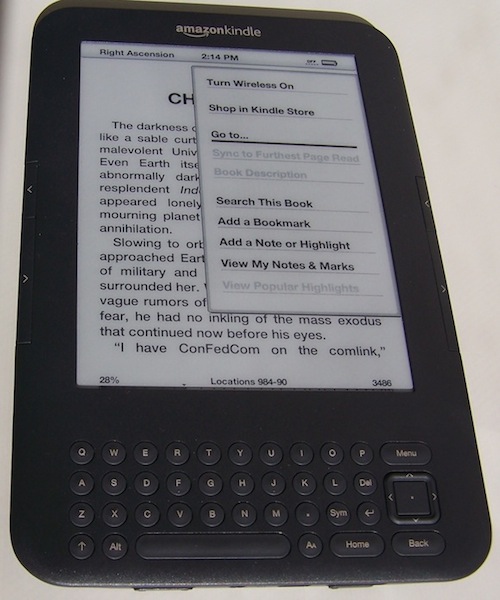
The Kindle 3 displaying a menu from within a book (note the "Menu" button on the upper-right corner of the keyboard below the screen)

On the left and right of the screen are long buttons marked with arrows, the “next page” and “previous page” buttons. Below the screen is a full keyboard, used for typing notes, names of folders (called “collections”), website URLs, etc. To the right is a 5-way controller (arrows for up, down, left, and right surrounding a center button). Near that are “Home,” “Menu,” and “Back” buttons. Also of note is the “Sym” key, used to type numbers and symbols, and the “Aa” key, used to change the text font and size, change the screen orientation, and use text-to-speech. At the bottom of the Kindle, from left to right, are a volume button, a headphone jack, the micro-USB charging port, and the power slider. (Note that the K2’s buttons are in different places, but generally do the same things.)

When you first get your Kindle, slide the power switch to the right and release it to turn your Kindle on (sliding it again puts it to sleep, and holding it to the right for several seconds restarts it). Press the Menu button and use the 5-way controller to select the “Settings” option (your current selection in the menu will be underlined). Press in on the center button of the 5-way controller to activate your selection. The Settings screen will come up, and you will see “Registration,” “Device Name,” “Wi-Fi Settings,” and other options (at the bottom, it will say “Page 1 of 3,” use the previous page and next page buttons to see the rest). The word “register” should be underlined. If you haven’t registered it yet, press the center 5-way button again, and enter the email address and password associated with your Amazon account.

Once your device is registered, you can change your Kindle’s name, connect to a Wi-Fi hotspot (on the Kindle 3; the Kindle 1, 2, and DX only have 3G connectivity), set a password, and change other options. Press the “Home” button when you’re finished.

This will take you to the home screen, where you’ll see a list of all the books on your device, as well as an entry for “Archived Items,” and any collections you may have. Use the previous page and next page buttons if you have more books than fit on the screen at once. Use the 5-way controller to select books and open them. If you’ve purchased books from Amazon, they should download to your device if the 3G or Wi-Fi wireless is turned on — if not, press the Menu key and select “Sync & Check for Items.” In that menu, you will also see an option to “Turn Wireless On (or Off)” (turning it off when not needed — like when reading a book — saves a lot of battery life), “Shop in Kindle Store” (which lets you browse and buy e-books from Amazon straight from your Kindle when wireless is turned on), and “Experimental” (which is where you can access the Web Browser, MP3 player, and text-to-speech function).

Getting Books Onto The Kindle

You’ll want something to read. As mentioned above, any books you purchased from Amazon can be downloaded by selecting “Sync & Check For Items” when you have wireless access. You can also use Calibre (mentioned above), or simply drag & drop e-books you have on your computer. If, for example, you’ve downloaded some free e-books from Project Gutenberg and want to put them on your Kindle, just use the USB cable that came with your Kindle and attach it to your computer. It will show up just like a USB flash drive or external hard drive that you’ve attached to your computer, and will be called “Kindle.” If you double-click to open it, you will see folders, including one named “documents.” Simply drag any e-books (in the appropriate format, like .PRC or MOBI) into the documents folder and eject your Kindle — your new books will show up on your home screen. The Kindle 3 comes with 4 GB of memory — plenty for several thousand e-books. The Kindle 2’s 2 GB should be plenty as well.

Reading And Organizing E-Books

Once you have the e-books you want on your Kindle, return to your Kindle’s home screen (slide the slider if your Kindle has gone to sleep, and press the Home button if necessary). You’ll see a list of all your e-book titles, along with “Archived Items” and probably a dictionary or two (which you could — but wouldn’t normally — read like a book; they’re used for the Kindle’s built-in dictionary look-up feature). At a minimum, you should see a Kindle User’s Guide and a Welcome Note. You can use the previous page and next page buttons if you have more e-books than can fit on a single screen.

If you press the Menu button, you’ll have the option to “Create New Collection,” which is like a folder, or a tag for a book. You can organize your e-books by making collections (“Science Fiction,” “Romance,” “Read,” “Favorites,” etc.). You can then select those collections and press the center 5-way button to open them, or press to the right on the 5-way controller, where you can open, rename, or delete your collections, or add e-books to them.

Similarly, you can select an e-book from the home screen and press the 5-way to the right to see options about that book (“Add to Collection,” “Go to Last Page Read,” “Go to Beginning,” “Search This Document,” etc.). You can press the 5-way to the left to remove the book from the device — for books purchased through Amazon, this will send them to the “Archives,” where Amazon backs them up for you. You can re-download them whenever you have wireless access by going to your “Archived Items.” For books you have “side-loaded” through your computer with the USB cable, it will delete them from the Kindle and Amazon won’t back them up.

At the very top of the home screen will be a bar that shows the name of your Kindle in the upper left, and the wireless status (bars for 3G, Wi-Fi, or “OFF”) and battery life indicator in the upper right. Just below this bar, it will say “Showing all 35 items” (or however many you have on your device), and “By Collections.” Press up to select this line, and press to the right if you’d like to sort by “Most Recent First,” “Title,” “Author,” or “Collections.”

Back on the home screen, use the 5-way controller to select one of the e-books on your device (the “Kindle User’s Guide” will work), and depress the center button to open the e-book.

The e-book will open on your device, and you’ll see the bar at the top, this time with the name of the book in the upper left. At the bottom is the location bar, which shows you your place in an e-book visually, by percentage, and by “locations.” Since you can change the text size and other aspects of an e-book, there are no fixed “pages” like in a printed book, so “locations” are used to track your progress in a book instead (as a rough guideline, about 15 locations would correspond to the average printed book page, so a decent-sized e-book novel would have 2,500 – 7,500 locations).

The screen will show the text of the e-book, bringing you back to the last spot you’ve read, or perhaps the e-book’s cover or a table of contents (if it has them) if it’s your first time opening that particular e-book. To navigate through the book, use the next page and previous page buttons on either side of the screen. The bar at the bottom will show your progress, and, in a nice touch, the bar at the top disappears to provide more room for text. (Press the Menu button to bring back the bar, along with a clock.)

Another method for navigation is to press the Menu button, and one option will be “Go to…” Select this, and you can either type in a particular location number then press the 5-way down to select “location,” or use the 5-way to select “cover,” “beginning,” or “table of contents.” From the table of contents (which most, but not all, e-books have), use the 5-way controller to select the chapter and press the center 5-way button to go there. To back out of a menu without selecting anything, just press the “Back” key in the bottom right.

General Usage And Tips

Dictionary: when in an e-book, press the 5-way directional buttons to select a word, and the definition will pop up in a little window on the screen (press “Back” to make it disappear, or press the Enter key just left of the 5-way controller to get a full-screen definition; from the full-screen dictionary, press “Back” to return to the book). I find the dictionary very convenient, and use it often.

Font Size: press the “Aa” button just right of the space bar, and a menu will come up that allows you to select one of 8 font sizes, three typefaces (“regular,” “condensed,” and my favorite, “sans serif”), line spacing (“small,” my favorite “medium,” or “large”), and words per line (which sets the side margins; I use “default”). Note that typefaces and line spacing are only available on the K3.

Text-to-Speech: to turn on the text-to-speech feature, which is a God-send for people who like to listen to e-books in the car or for the visually impaired, press the “Aa” button and select “turn on” where it says “Text-to-Speech.” Unless the publisher has disabled the feature for that particular e-book, the Kindle will start reading the words to you in a robotic voice (use the volume buttons on the bottom of the device to adjust). The voice isn’t like an audiobook read by a real human voice actor, but it’s still a nice feature. Press the “Aa” button again and select “turn off” to stop.

Notes, Highlighting, & Bookmarks: from within any e-book, use the 5-way controller to move to where you’d like the note or highlight to begin, and simply start typing with the keyboard to create a note, or click the center button to start a highlight. To add a bookmark, press the Menu button and choose “Add a Bookmark,” or just press Alt + B.

Battery: you’ll see the battery life in the upper right of your Kindle. With normal usage, your K3 should last about a month, reading an hour or two a day. You should be able to get through several books on a single charge. For best battery life, turn the wireless off from the Menu whenever you’re not using it; with wireless on, the battery won’t last nearly as long. Amazon recommends you simply put your Kindle to sleep when you’re done reading (just slide the slider switch briefly to the right and release, or just leave it alone and it will go to sleep automatically in 10 minutes). They also recommend you aim to keep your battery above 25% if possible — unlike some batteries, it’s not great to let this one run all the way down before recharging. Just plug it in from time to time (it will charge when connected to your computer through USB), and aim to keep it between 25% and 75% charged.

Cases: you may want to protect or show off your Kindle with a functional or stylish case, or use a reading light for night reading, or even get a case with a built-in reading light.

Final Thoughts

I hope this Kindle beginner’s user guide and tips & tricks have been helpful — the post got quite long even though there’s lots more I could talk about! Please just leave a comment below if you have any specific questions, and I’d be glad to answer them for you. Enjoy your new Kindle, and happy e-reading!